
Hands-On Component: Bitcoin Core and Bitcoin Addresses
Lecture 4 · Monday, September 14, 2026
Complete this hands-on component during Lecture 4.
Summary
- Install Bitcoin Core and configure it to use Testnet4.
- Create a wallet and legacy address, then request test bitcoin.
- Inspect your address and decode its locking script.
- Send Testnet4 bitcoin.
- Decode the transaction and relate an input to the previous output it spends.
Step 1: Install and configure Bitcoin Core
Bitcoin Core is software that runs a Bitcoin node: it downloads and validates blocks and transactions, and includes a wallet and a console for interacting with the node.
In this tutorial, Bitcoin Core will connect to Testnet4, a separate public Bitcoin network created for testing. Testnet4 has its own blockchain and coins; it is not connected to the Bitcoin mainnet.
1.1 Install Bitcoin Core
- Visit the official Bitcoin Core download page.
- Download the macOS
arm64zip if About This Mac lists an Apple chip, or thex86_64zip if it lists an Intel processor. - Double-click the downloaded zip file to unpack it.
- Drag Bitcoin Core into your Applications folder, then open it from there.
Optional alternative: If you already have Homebrew, you can install Bitcoin Core with:
brew install --cask bitcoin-core- Visit the official Bitcoin Core download page.
- Download the Windows
exeinstaller. - Run the installer and follow its prompts.
Choose the appropriate release from the official Bitcoin Core download page.
1.2 Start Bitcoin Core
Open Bitcoin Core. Your operating system may ask you to confirm that you want to open the application.
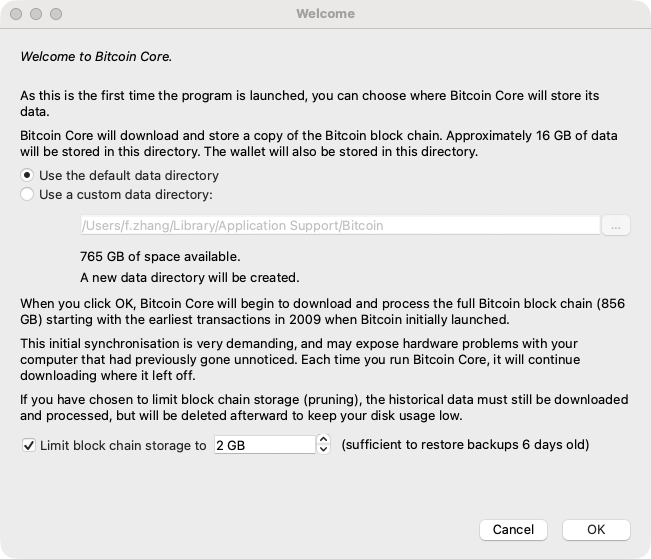
You can use the default data directory and limit blockchain storage. You can also ignore the warning about synchronization load because Testnet4 has a much smaller blockchain than the main Bitcoin network.
1.3 Configure Testnet4 mode
Click Preferences → Open Configuration File, then copy and paste the following:
# Connect to Testnet4
testnet4=1

# Do not accept incoming connections
listen=0

# Allow the Bitcoin Core GUI and daemon to accept JSON-RPC commands
server=1
Save the file and restart Bitcoin Core for the new configuration to take effect.
Step 2: Create a wallet and legacy address
2.1 Create a wallet
Click Create a Wallet and give it a name.
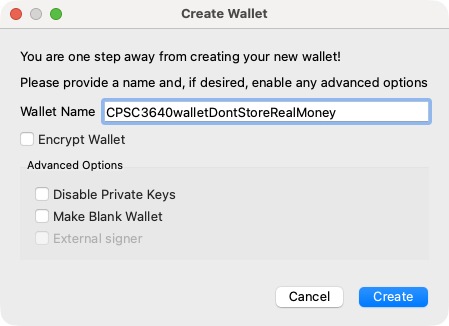
2.2 Create a legacy address
Create a legacy address for this hands-on component:
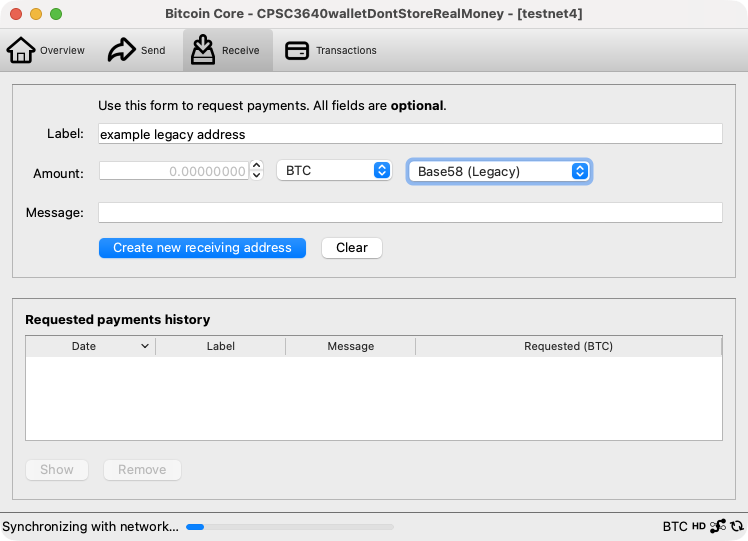
For example, I created the address myofnF2NWgLAwZ6rDhx66LhA7eJkqs3FHZ.
Click an address to open a window with more details. In Step 3, you will use
the Bitcoin Core console to inspect your address in greater depth.
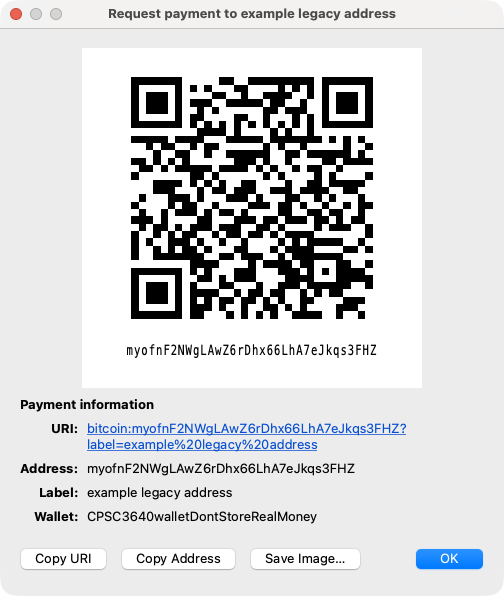
Record this address. You will use it for take-home Lab 1.
2.3 Request test bitcoin
Visit the Testnet4 faucet. Paste the legacy receiving address you just recorded, complete the CAPTCHA, and submit the request.
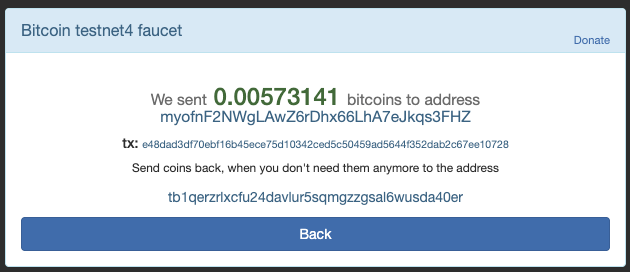
Your Bitcoin Core node is likely still synchronizing. The payment may not appear in your wallet until your node reaches the block that confirms it. Continue to Step 3 while you wait.
Step 3: Inspect the address and its script
The Bitcoin Core console is a powerful interface for interacting directly with your node. Open it by selecting Window → Console.
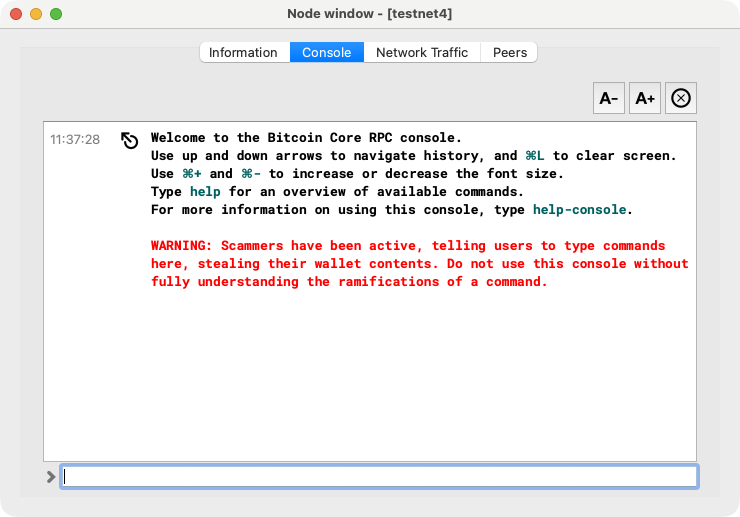
Run each command in the Bitcoin Core console. Replace placeholders in capital letters with the value returned by an earlier command.
3.1 Look up the legacy address
getaddressinfo "ADDRESS"
Bitcoin Core returns a JSON object with information about the address. Find
scriptPubKey: the locking script that a transaction output uses to pay this
address, encoded in hexadecimal.
Record its scriptPubKey. You will decode it next.
3.2 Decode its locking script
decodescript "SCRIPTPUBKEY"
Record the asm, type, and public-key hash in the decoded script.
Step 4: Send and inspect a Testnet4 transaction
4.1 Send test bitcoin
After your node finishes synchronizing and the faucet payment appears in your
wallet, use the Send tab to send 0.0001 tBTC to the course address:
myofnF2NWgLAwZ6rDhx66LhA7eJkqs3FHZ
If a recommended fee is not available, select Custom and use
0.00001 BTC/kB.
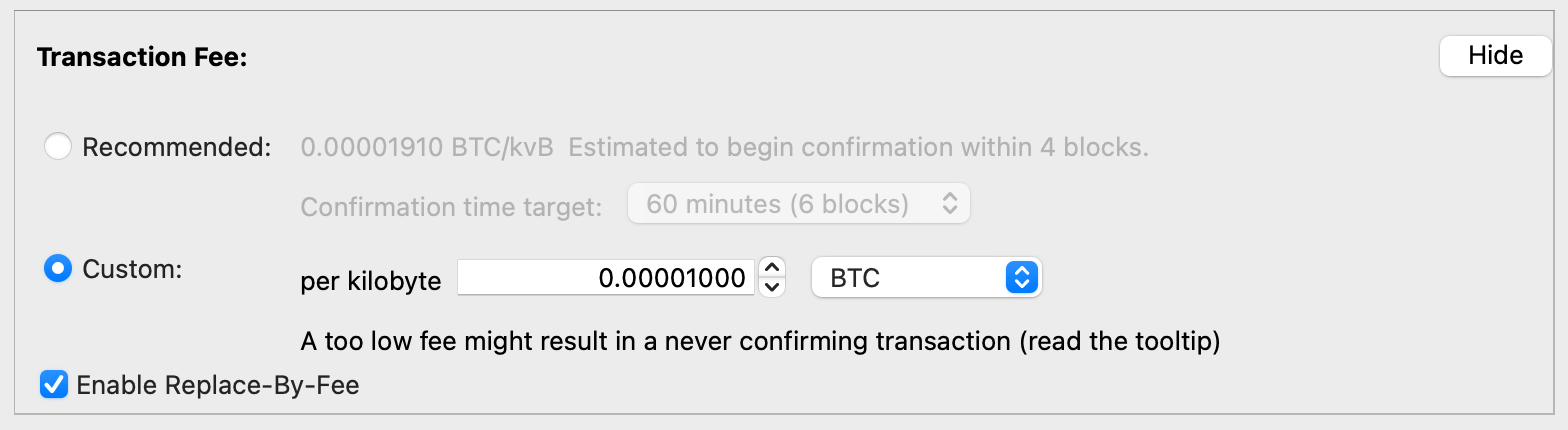
Record the transaction ID (txid) after sending.
4.2 Decode the transaction you sent
Use the Bitcoin Core console to retrieve the transaction from your wallet:
gettransaction "TXID"
Copy the hex field from the result, then decode the raw transaction:
decoderawtransaction "HEX"
Examine vin[0] and record its public key (pk). Find the public key in
scriptSig.asm: it is the second value pushed onto the stack, after the
signature.
Paste that public key into the calculator below:
HASH160 calculator
Compare the calculator’s result with the public-key hash you recorded in Step
3.2. They should be identical: OP_EQUALVERIFY checks this match, then
OP_CHECKSIG checks the signature. This is why the input satisfies the
locking script.
End of assignment.
Payments received
by `myofnF2NWgLAwZ6rDhx66LhA7eJkqs3FHZ` since 09-14-26.
Loading payments…